Writing about aerospace and electronic systems, particularly with defense applications. Areas of interest include radar, sonar, space, satellites, unmanned plaforms, hypersonic platforms, and artificial intelligence.
summary of "Understanding ChatGPT: Impact Analysis and Path Forward for Teaching Computer Science and Engineering" by Paramarshi Banerjee, Anurag Srivastava, Donald Adjeroh, Y. Ramana Reddy, Nima Karimian https://www.techrxiv.org/ndownloader/files/40181740/1
The paper "Understanding ChatGPT: Impact Analysis and Path Forward for Teaching Computer Science and Engineering" is a research article that explores the impact of large language models like ChatGPT on computer science and engineering education. The paper discusses the potential benefits and drawbacks of using these models as teaching tools, and suggests a path forward for incorporating them into the classroom.
The paper begins by providing an overview of large language models and their applications. The authors note that these models have become increasingly popular in recent years, as they can be used for a wide range of tasks, including language translation, text generation, and sentiment analysis. They then discuss the potential impact of these models on education, arguing that they have the potential to improve learning outcomes by providing students with access to vast amounts of data and sophisticated natural language processing capabilities.
Next, the authors discuss some of the potential drawbacks of using large language models in education. For example, they note that these models may be difficult for students to understand, as they often rely on complex algorithms and statistical models. Additionally, the authors suggest that there may be ethical concerns associated with the use of these models in education, such as the potential for bias or discrimination.
The authors then suggest a path forward for incorporating large language models like ChatGPT into computer science and engineering education. They suggest that educators should focus on teaching students how to use these models effectively, rather than simply relying on them as black boxes. This may involve teaching students about the underlying algorithms and statistical models used by these models, as well as helping them to develop critical thinking skills that will allow them to evaluate the outputs generated by these models.
Overall, the paper provides a thoughtful analysis of the potential impact of large language models on computer science and engineering education. While the authors acknowledge some of the potential drawbacks associated with these models, they ultimately argue that they have the potential to significantly improve learning outcomes in these fields. By focusing on teaching students how to use these models effectively, educators can help to ensure that they are able to take advantage of the many benefits that they offer.
summary of "Bayraktar Kızılelma getting ready for combat !" https://youtu.be/rrm_KIez4jw
The video "Bayraktar Kızılelma getting ready for combat!" showcases the preparation and capabilities of Turkey's Bayraktar Kızılelma unmanned combat aerial vehicle (UCAV). The video highlights the UCAV's features, including its advanced sensors, precision-guided munitions, and ability to conduct autonomous missions. It also showcases the training and preparation of Turkish military personnel who will operate the UCAV in combat situations. Overall, the video aims to demonstrate Turkey's military technology capabilities and readiness for combat.
The video begins by showcasing the Bayraktar Kızılelma unmanned combat aerial vehicle (UCAV) on the ground, with its wings folded and its sensors and weapons visible. The UCAV is equipped with advanced sensors, including electro-optical and infrared (EO/IR) sensors and a synthetic aperture radar (SAR), which provide it with a comprehensive situational awareness of the battlefield. The UCAV is also armed with precision-guided munitions, including laser-guided missiles and bombs, which can be used to strike targets with high accuracy.
The video then shows the Bayraktar Kızılelma UCAV taking off from a runway and flying through the sky. The UCAV is controlled remotely by Turkish military personnel on the ground, who use a ground control station (GCS) to send commands to the UCAV and receive data from its sensors.
The video also showcases the UCAV's autonomous capabilities, including its ability to fly pre-programmed missions without human intervention. The UCAV can take off, fly to a designated area, search for targets using its sensors, and strike them with its weapons, all without any input from human operators.
In addition to the UCAV's technical features, the video also highlights the training and preparation of Turkish military personnel who will operate the UCAV in combat situations. The personnel are shown going through various training exercises, including simulator training and live-fire exercises, to ensure that they are proficient in operating the UCAV and using its weapons effectively.
Overall, the video aims to showcase Turkey's military technology capabilities and readiness for combat, particularly in the realm of unmanned aerial systems. The Bayraktar Kızılelma UCAV is presented as a powerful and versatile weapon system that can be used in a variety of missions, from intelligence gathering to precision strikes on enemy targets.
I let Bixby answer my calls and everyone hung up on me
8–10 minutes
Calvin Wankhede / Android Authority
Samsung’s One UI
is chock-full of features, many of which you might not even know
existed. And if that wasn’t enough, seemingly every other update brings
along a smattering of new features and enhancements. Case in point —
Samsung recently rolled out the One UI 5.1 update alongside the release
of the Galaxy S23
series. While I tend to ignore minor version bumps when they hit my
smartphone, one feature buried deep in the changelog caught my eye:
Bixby text call.
Going by the name, you might think the feature is an extension of Bixby
in some way — perhaps the AI assistant can now write your texts a la
ChatGPT? Fortunately, however, Bixby text call has almost nothing to do
with the voice assistant that goes by the same name. Instead, it’s a
brand-new feature that mimics Call Screening on Google’s Pixel
smartphones. And the best part? It’s available on just about any Samsung
phone running One UI 5.1 or higher, regardless of where you live.
That’s
right — Bixby text call can answer calls on your behalf and transcribe
the caller’s speech in a text chat-like interface. You can then choose
to respond via text, answer the call, or hang up. But that’s just the
theory — does it work in the real world? I’ve had the feature enabled on
my Galaxy S21 FE for the past month to find out.
Do you use a call screening service on your phone?
543 votes
Bixby text call: Like Pixel Call Screening, but better…and worse
Calvin Wankhede / Android Authority
Once
you enable Bixby text call, you’ll see a new button on the incoming
call screen. If you tap it and answer the call, Bixby will take over.
The idea is that you can find out the caller’s intent before giving them
your full attention. If it’s an unknown number, you probably want to
know if it’s the doctor’s office calling or just a salesman barking up
the wrong tree.
I didn’t stop at unknown numbers, though. I
decided to let Bixby answer all of my calls, even if it came at the
expense of disgruntled friends and family.
So what happened? The
good news is that Bixby text call does what it claims. When answering a
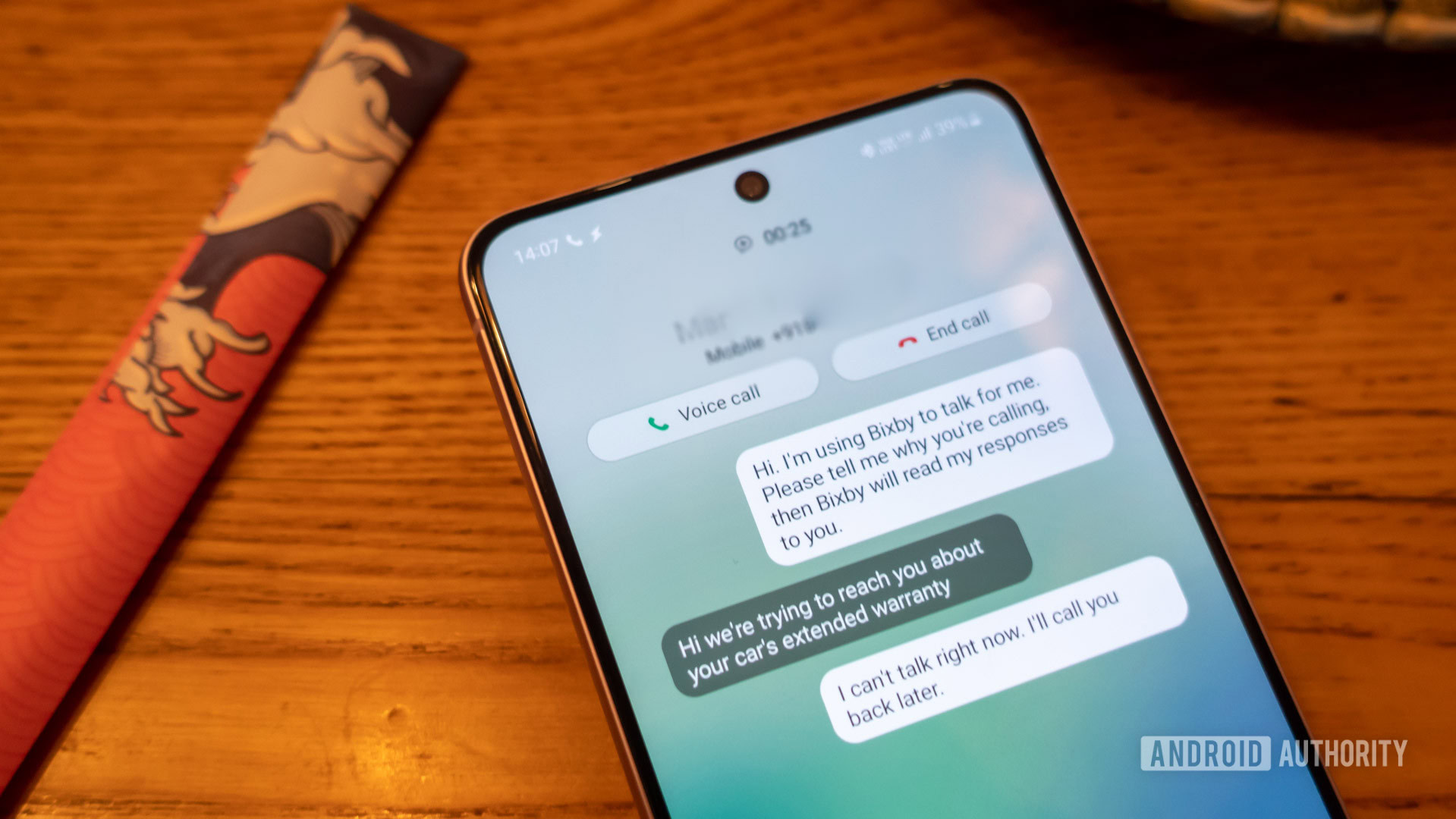
call, it greets the caller and reads out the following: “Hi. I’m using
Bixby to talk for me. Please tell me why you’re calling, then Bixby will
read my responses to you.” Anything the caller says, even while Bixby
introduces itself, is then automatically transcribed and displayed on
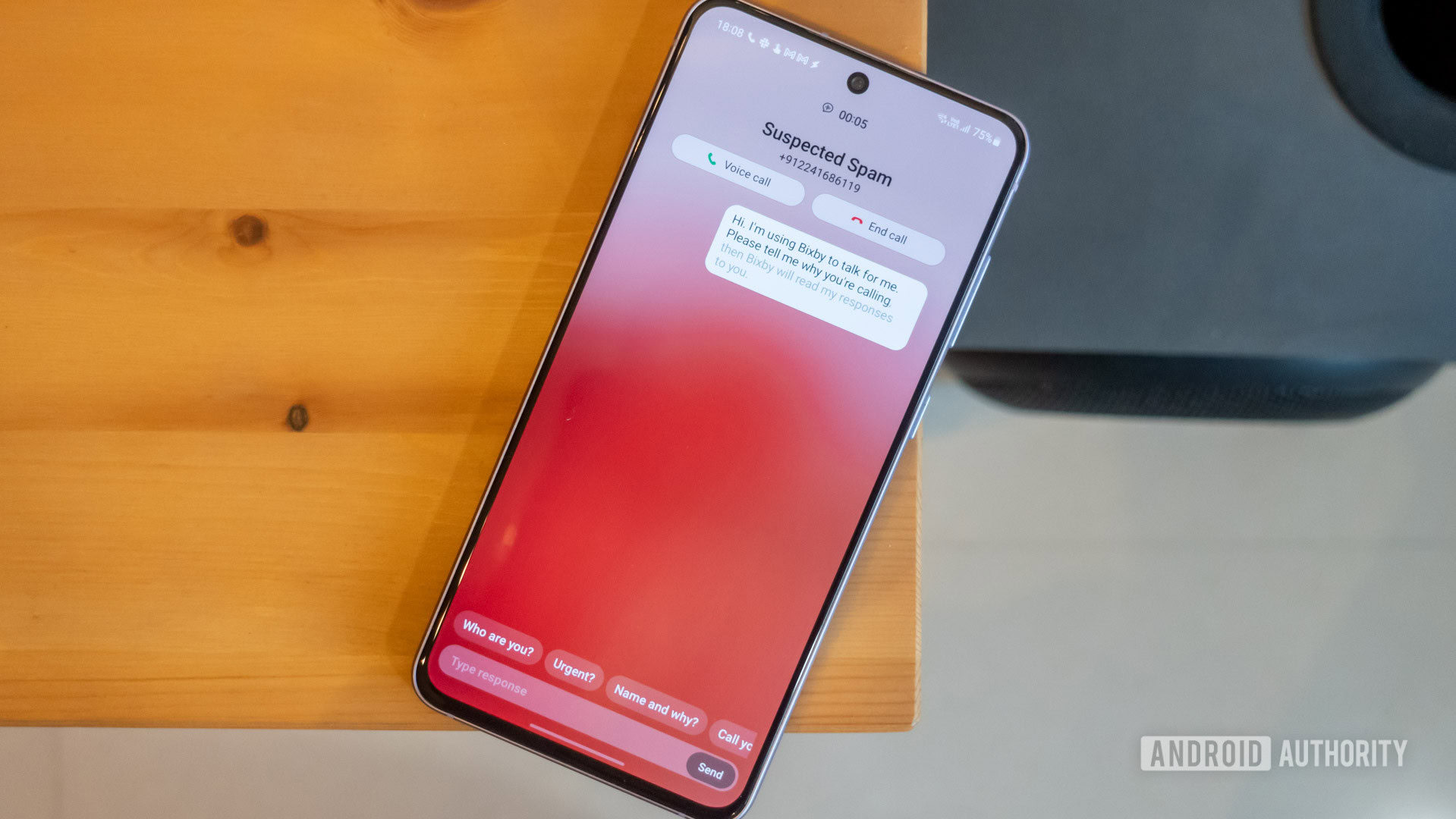
the phone. From here, you can tap on a few pre-defined replies or type
your own responses.
Unlike Call Screening on a Pixel, Bixby will read out whatever you type to your callers.
However,
it didn’t take long for me to notice that callers didn’t like talking
to Bixby. While this may seem obvious given the voice assistant’s
heritage, it’s actually not for the reasons you might think. Even though
Samsung offers five different voices to choose from, none of them
sounded convincing or even friendly to my callers. Pixel’s Call Screening sounds a lot more natural since it uses the Assistant and Google’s excellent text-to-speech engine.
Samsung’s
initial greeting also includes two mentions of the word “Bixby,” which
means very little to the average person. Who is Bixby and why are they
on the call with me? Unsurprisingly, I’ve noticed many first-time
callers take a long pause to process what they’ve just heard. And a few
hung up on me too, before attempting to call again. But when they do
finally respond, Bixby transcribes English words decently well in most
cases.
My callers don't understand who Bixby is and why they're on a call with them.
Bixby
also relays whatever I type into the bottom text field in its own
voice. This can be handy if you need to communicate something privately
when other people are around you. The only downside is the long pause as
the caller has to wait for me to type in my response. Still, the quick
responses help weed out unscrupulous callers as you can simply hit them
with a “Sorry, I’m busy right now.”
You may have noticed that I
said Bixby works well “in most cases” earlier. That’s because Bixby text
call is far from perfect and, more importantly, absolutely doesn’t
support any language that isn’t English or Korean. If you live in a
bilingual region, you’ll quickly discover that Bixby will try its
hardest to transcribe non-supported languages…and fail miserably. I’ll
let the following screenshots from a non-English conversation do the
talking:
Is it Samsung’s fault that I used Bixby text call for
non-English voice calls? No, the company makes that limitation pretty
clear before you even enable the feature. But it’s not like I knew which
language the caller spoke before I answered the call. The results are
still entertaining, though.
All jokes aside — this limitation
wouldn’t be so bad if I could review or listen to a recording and
cross-verify what the caller said. But unlike Call Screening on the
Pixel, Samsung phones
do not store an audio recording of the call — only a copy of the text
transcript. So if you screened an important call in a language Bixby
doesn’t understand, you’ll never know what the call was about.
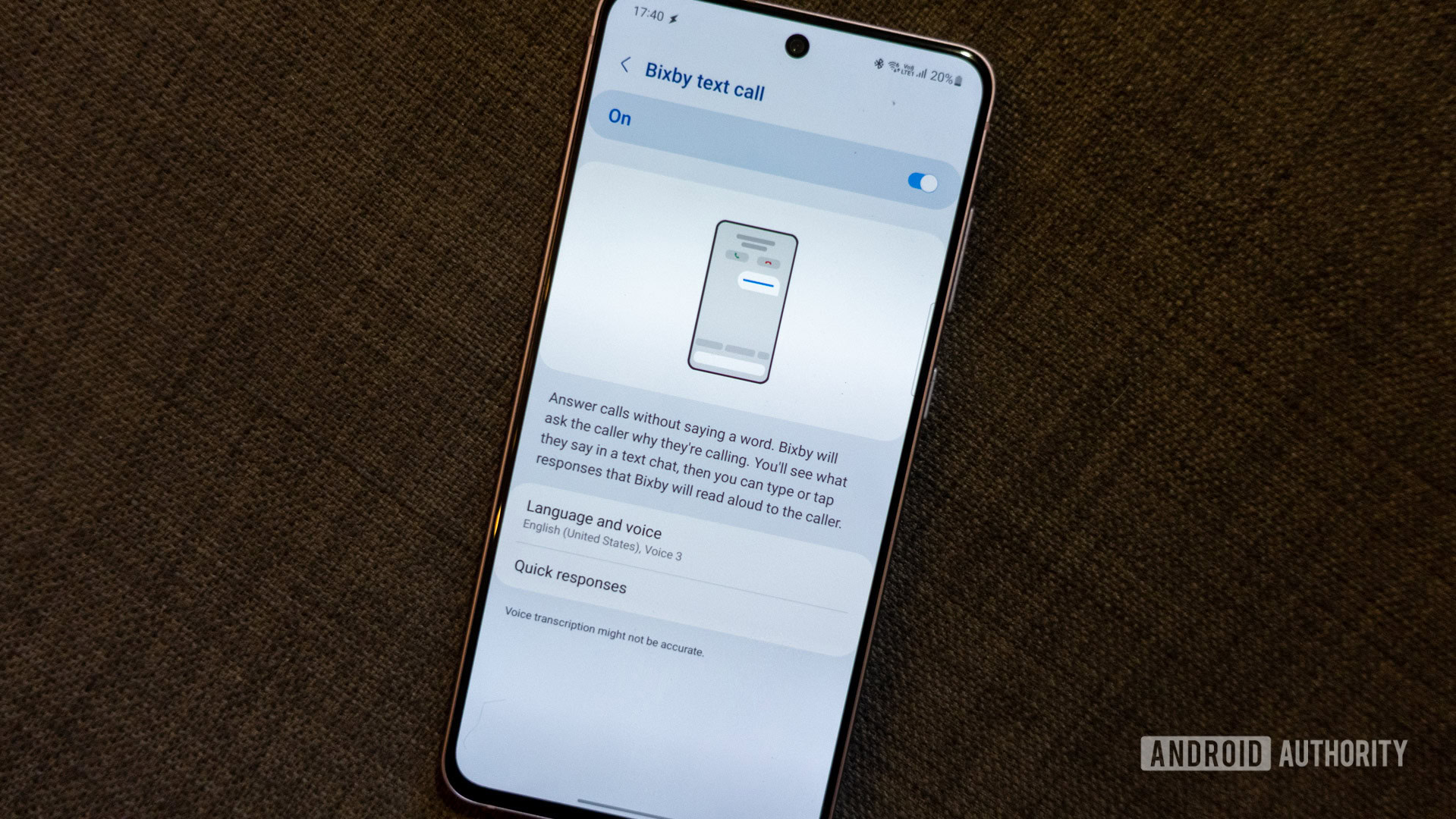
You’ll need a Samsung phone running One UI 5.1 or higher. To enable Bixby text call, open the Phone app and navigate to Three dots menu > Settings > Bixby text call and flip the toggle to On.
Bixby text call is available worldwide, but it currently only transcribes English and Korean languages.
Bixby text call: Not perfect, but it’s close
Calvin Wankhede / Android Authority
If
you can set aside the language barrier, Bixby text call is a genuinely
handy feature for when you’re suspicious of a spam call or cannot answer
voice calls. And beyond screening calls, the ability to type your own
responses is a big step forward. You can actually have a dialogue with
the other person rather than just asking them “Is it urgent?” or “Who
are you?” For context, Google’s Call Screening can only do the latter.
I
know I’ve criticized the feature a fair bit, but Bixby text call works
decently well already, especially if you only consider it for call
screen purposes. From what I’ve noticed, marketers hang up pretty
quickly when they hear an automated response versus if I said the same
thing in my voice instead. But that doesn’t mean it has to end there.
Here are a few improvements I hope Samsung brings to the feature:
Custom greeting: Bixby’s current introduction takes
too long to recite and can be confusing if you don’t already know about
the voice assistant. A custom greeting would go a long way toward
making the experience feel more bespoke and personal. Samsung does have a
feature that uses AI to create an offline copy of your voice, but it’s limited to Korean for now.
Galaxy Watch integration: I decline calls from my
wrist more often than not, especially when I’m around other people. If
Samsung brings the Bixby text call button to its Galaxy Watch line, I’d have one more reason to use the feature — take calls discreetly.
Background call screening: Manually screening a
call from my wrist is cool, but you know what’s even better? Doing it
automatically, like Call Screening on the latest Pixel phones. The
Samsung Dialer app already identifies spam calls accurately in my area,
so automatically screening them would be a huge plus.
Saved audio recordings: As I alluded to earlier,
the lack of audio recordings really hurts the feature’s usefulness.
Google’s Call Screening didn’t include this at launch either, so I can
only hope Samsung adds it in the future. It would solve the
multi-language problem as I can then simply ignore Bixby’s gibberish.
Nice-to-have feature requests aside, credit where it’s due: Samsung
lets you use Bixby text call anywhere in the world. That’s a privilege
you don’t get with Call Screening on the Pixel, as it’s simply
unavailable in many regions. If you move or switch to a local SIM card
while traveling, the feature will simply disappear. Samsung doesn’t
impose similar restrictions, even though it only supports two languages
at the moment.
All in all, Bixby text calling probably won’t
convince you to buy a Samsung smartphone. However, it’s definitely one
of those rare Android features that you won’t find anywhere else (yes,
barring a Pixel). Whether it’s perfect right now or not, I’d rather have
some form of call screening than nothing at all.
Keep ChatGPT a click away by making it a Windows app.
ChatGPT is an artificial intelligence (AI) chatbot built on OpenAI’s
large language models. It is a web app, and you’ll need to visit the
site every time to access it.
But what if you can run ChatGPT as a Windows app? While no official
Windows version is available, Microsoft Edge and Chrome let you use
ChatGPT as a native Windows app. Here’s how you can run ChatGPT as a
Windows app using Microsoft Edge, create a Chrome shortcut for the AI
bot, and pin the ChatGPT app to the taskbar.
How to Run ChatGPT as a Windows App Using Edge
Microsoft Edge features an Install this site as an app feature. It
lets you run web pages as standalone native Windows apps. Since ChatGPT
is only available as a web app, you can install the AI chatbot website
as an app on your computer. It looks and works similarly to the web
version, except you don't see any web elements such as bookmarks, tabs,
etc.
To add ChatGPT as a Windows app using Edge:
Go to the ChatGPT page on the Edge browser and sign in with your account credentials.
Next, click the three-dots menu to access the browser menu.
Go to Apps and select Install this site as an app.
In the Install App popup, enter a name for the app. For example, enter ChatGPT. Entering a name makes it easy to search for the installed app.
To add a custom icon, click the Edit button under Install App and select an icon from your local drive. For GPT, you can leave it as default.
Click Install and wait for Windows to install the site as an app.
The ChatGPT app will auto-launch after the installation is complete. In the App installed
dialog, you can pin it to the taskbar and Start, create a desktop short
and enable auto-start on device login. Select your preferences and
click Allow.
You can search and launch the app from the Start menu like any other
application on your computer. Similar to the web version, ChatGPT will
require you to sign in after the session expires. Once you're in, you
can chat, or explore some cool things you can do with ChatGPT.
Since it is basically a progressive web app (PWA), it also inherits a few browser features. For example, click the three-dots menu in the app and head over to More Tools to access the Print, caste media to a device, zoom, and copy link feature.
To pin the ChatGPT app, press the Win key and type ChatGPT. Right-click the app icon and select Pin to Start or Taskbar.
To uninstall the ChatGPT web app:
Press the Win key and type ChatGPT.
Right-click on the app icon and Uninstall.
Click Uninstall again to confirm the action.
How to Add ChatGPT as Windows App Using Chrome
Similar to Microsoft Edge, Chrome features a Create shortcut feature.
You can add any site as a shortcut to use it as a native app. Here’s
how to add ChatGPT as a shortcut using Chrome.
In Google Chrome, navigate to the ChatGPT page and sign in with your account.
Click the three-dots menu in the top right corner.
Select More Tools and then Create Shortcut.
Enter a name in the Create shortcut popup.
Select the Open as window option. Without this, the ChatGPT shortcut will open the site in a new Chrome window instead of in its standalone window.
Click Create to finish.
You can open the ChatGPT Chrome shortcut from the Start menu.
Right-click on the Shortcut to add it to the Start menu and taskbar.
If you want to uninstall the Chrome shortcut for ChatGPT, here’s how to do it:
Press the Win key and type ChatGPT.
Right-click on the ChatGPT icon and select Uninstall.
In the Control Panel window, locate and select ChatGPT.
Click Uninstall and confirm the action to remove the app.
Install ChatGPT as a Windows App
Adding ChatGPT as a Windows app lets you access the app in a
standalone window. This removes the hassle of visiting the site
frequently to use the service. In addition, it also removes the clutter
around the web apps and browsers and offers a clean user interface with
only necessary options.